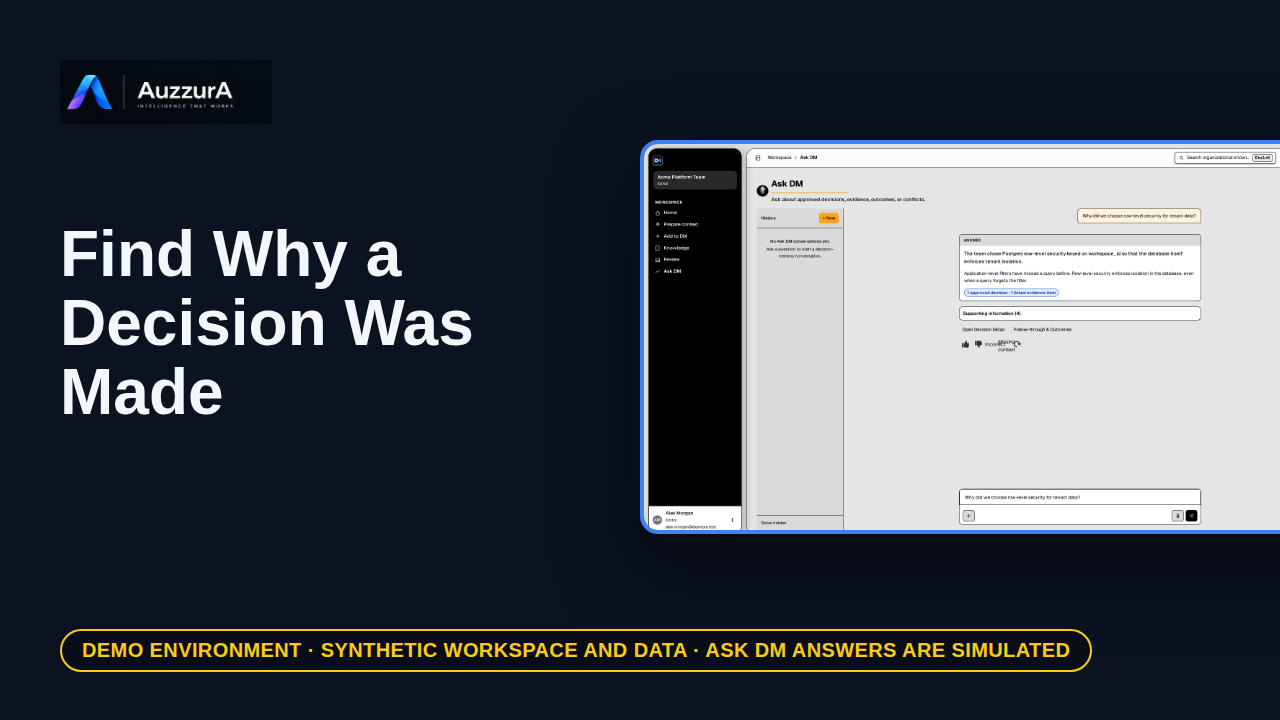
Find why a decision was made
Retrieve rationale, evidence and change history without chasing old messages. You found the implementation. But why was that choice made?
For: New engineer or tech lead
How-to
Create a bounded context package from approved knowledge. Before your AI agent changes code, give it the decisions that apply.
Read the steps OR watch the video. Both teach the same outcome, and neither is needed for the other.Jump to the video
What it means: Before an AI agent starts work, you can check which approved knowledge DM would prepare for it. That way you see the decisions, rules and skills that apply before any work begins, not after. Open Prepare context from the sidebar.
What it means: Describe the work in your own words. There is no special syntax. Here, the work is a migration that changes the invoices table.
What it means: The advanced context is optional. It lets you add the project, repository, environment and who will do the work. The more you add, the better DM can tell which policies apply. We'll leave it empty for now.
What it means: Then select Prepare context.
What it means: DM selects only approved knowledge that applies to this work. The summary counts the items it found, the missing context, and any conflicts.
What it means: The provenance card shows how DM prepared this. Here, it matched on keywords, because semantic retrieval isn't configured in this workspace.
What it means: Here it found an approved decision. Production schema changes need two reviewers. Each item says why it applies.
What it means: It also found a rule and a skill that follow from that decision. The rule says what must happen. The skill describes how to do the work.
What it means: The approval card is honest about what it could not determine. Without more detail about the actor and the project, DM can't tell whether a policy applies. It says more context is needed.
What it means: The conflicts card would flag knowledge that disagrees with other current knowledge. None was returned here. This page shows what DM would prepare. It doesn't send anything to an agent, and DM can't guarantee that an external agent follows the rules it is given. Next, connect the agent to use DM tools.
The decision, rule and skill are invented for this tour. A real workspace returns its own approved knowledge that applies to your task and that you are allowed to see; selection, ranking and wording in a live workspace were not shown or verified.
Advanced context fields (project, repository, environment, agent), policy matching, repository evidence and episodic memory are not demonstrated. Handing the context to an agent through MCP tools is a separate episode.
Demo environment · synthetic workspace and data · backend responses are simulated. See which approved knowledge DM would hand an agent
This guide tours the real DM Prepare context page with a synthetic workspace and a simulated backend response. DM prepares context from approved knowledge you can access; it does not guarantee that an external agent follows it.
Disclosure (kept in this transcript and the video description, not drawn on the frames): Demo environment · synthetic workspace and data · backend responses are simulated.
On screen: Start on DM Home (/). Click "Prepare context". The next view is "Prepare context" (/task). A highlight marks "Prepare context".
Narrator: Before an AI agent starts work, you can check which approved knowledge DM would prepare for it.
Narrator: That way you see the decisions, rules and skills that apply before any work begins, not after.
Narrator: Open Prepare context from the sidebar.
On screen: Type "Add a migration that changes the invoices table" into the "What are you working on? Required" field. A highlight marks "The work".
Narrator: Describe the work in your own words. There is no special syntax.
Narrator: Here, the work is a migration that changes the invoices table.
On screen: Click "Advanced context Optional". The next view is "Prepare context" (/task). A highlight labelled "Optional details" marks "Advanced context Optional".
Narrator: The advanced context is optional. It lets you add the project, repository, environment and who will do the work.
Narrator: The more you add, the better DM can tell which policies apply. We'll leave it empty for now.
On screen: Click "Prepare context". The next view is "Prepare context" (/task). A highlight marks "Prepare context".
Narrator: Then select Prepare context.
On screen: A highlight labelled "What was found" marks "3 Relevant knowledge items 0 Missing context 0 Conflicts More context…".
Narrator: DM selects only approved knowledge that applies to this work.
Narrator: The summary counts the items it found, the missing context, and any conflicts.
On screen: A highlight labelled "How it was prepared" marks "Selection provenance How DM prepared this authorized context. Retriev…".
Narrator: The provenance card shows how DM prepared this.
Narrator: Here, it matched on keywords, because semantic retrieval isn't configured in this workspace.
On screen: A highlight labelled "An approved decision" marks "DECISION active Any migration that touches production schema needs ap…".
Narrator: Here it found an approved decision. Production schema changes need two reviewers.
Narrator: Each item says why it applies.
On screen: A highlight labelled "A rule" marks "RULE Review production migrations twice Production schema migrations…". A highlight labelled "A skill" marks "SKILL Prepare a safe schema migration Steps an agent follows to draft…".
Narrator: It also found a rule and a skill that follow from that decision.
Narrator: The rule says what must happen. The skill describes how to do the work.
On screen: A highlight labelled "Approval context" marks "Approval context More context needed Current authorization context No…".
Narrator: The approval card is honest about what it could not determine.
Narrator: Without more detail about the actor and the project, DM can't tell whether a policy applies. It says more context is needed.
On screen: A highlight labelled "Conflicts" marks "Conflicts No related conflict signals were returned.".
Narrator: The conflicts card would flag knowledge that disagrees with other current knowledge. None was returned here.
Narrator: This page shows what DM would prepare. It doesn't send anything to an agent, and DM can't guarantee that an external agent follows the rules it is given.
Narrator: Next, connect the agent to use DM tools.
Last verified against the product on .
Retrieve rationale, evidence and change history without chasing old messages. You found the implementation. But why was that choice made?
For: New engineer or tech lead
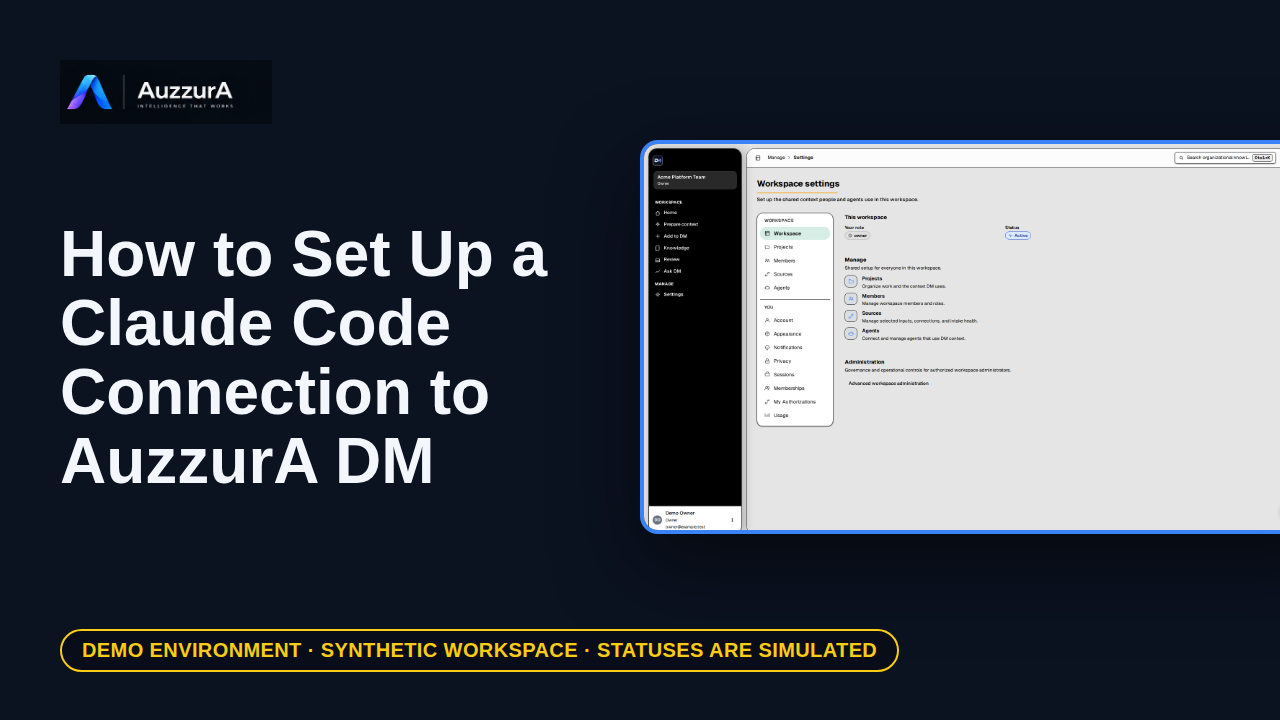
Create a workspace agent, then prepare the Claude Code connection it will use.
For: Pilot developer
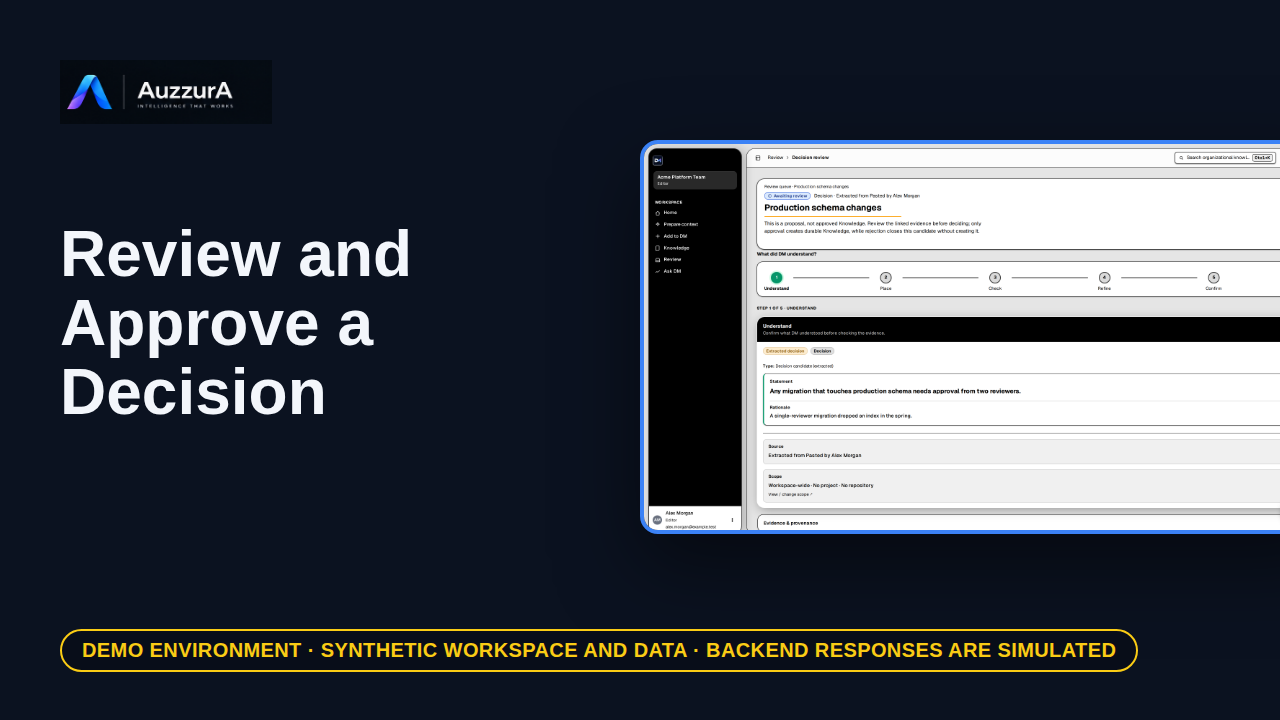
Demonstrate why AI extraction is not automatically team policy. DM proposes what it found. Your team decides what becomes trusted.
For: Reviewer / workspace decision owner
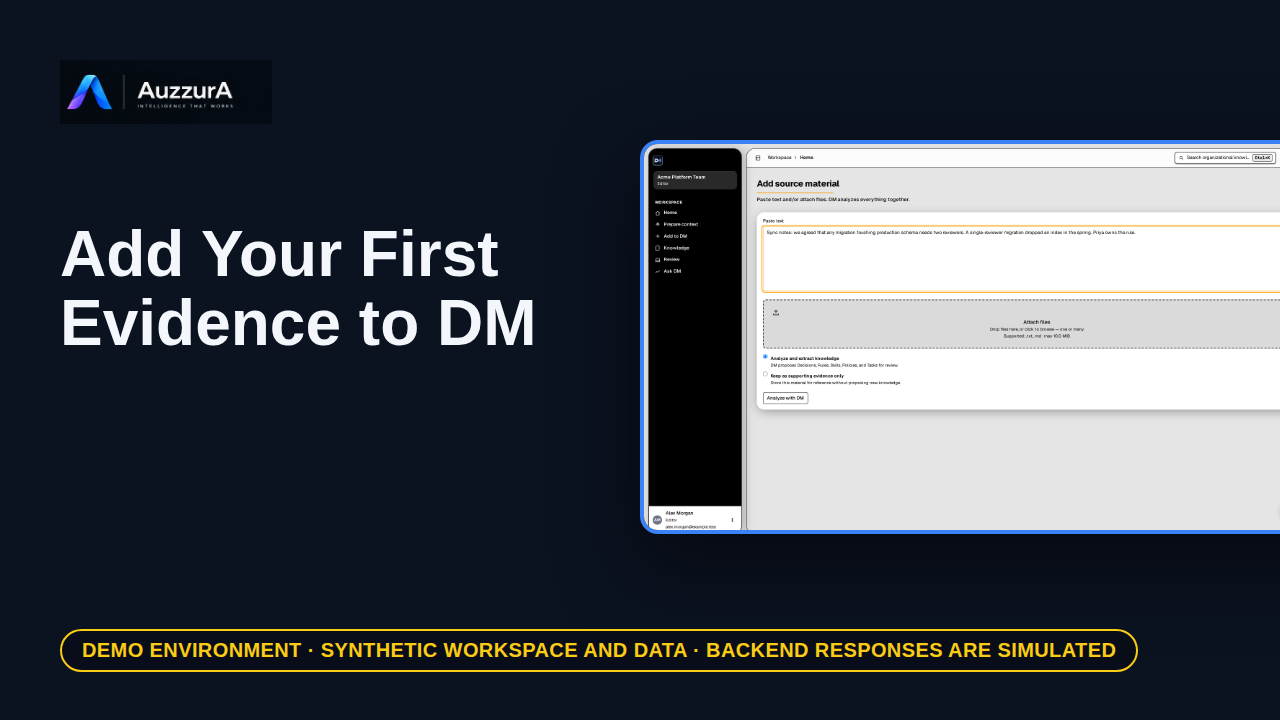
Start from one relevant source rather than recording everything. A team decision often starts in a document, a ticket, or a meeting note.
For: Workspace member