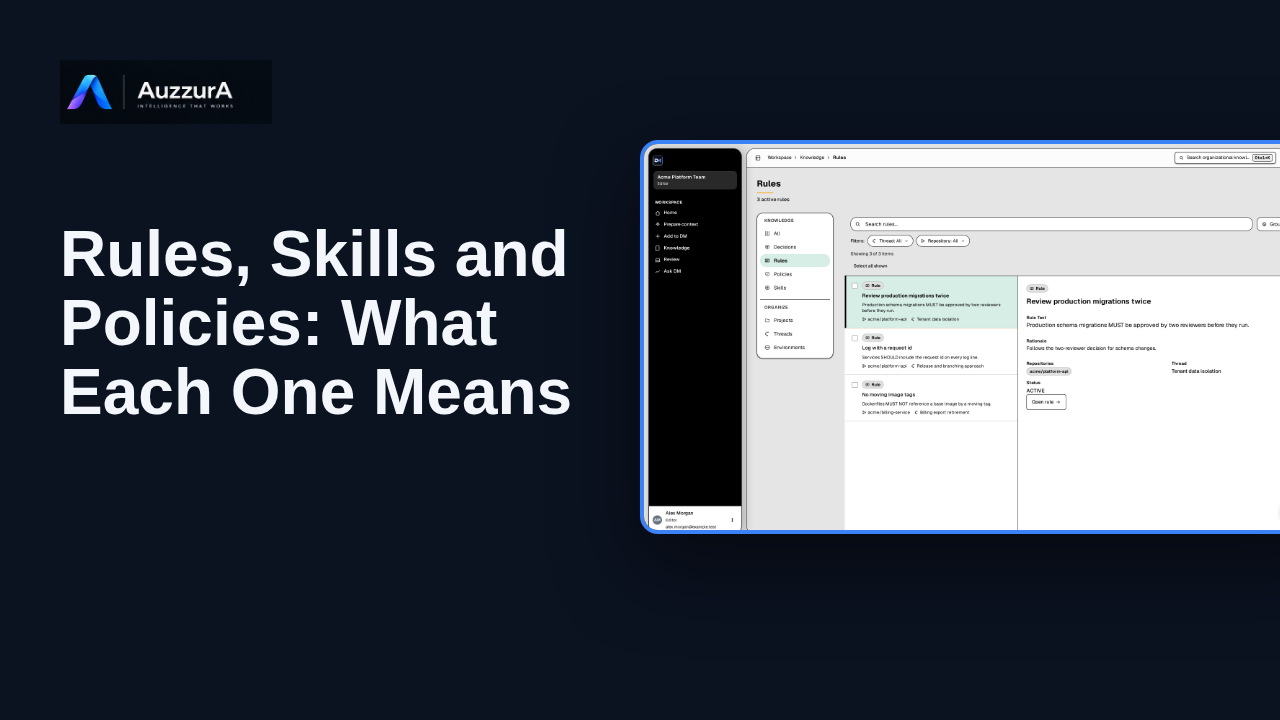
Rules, Skills and Policies: what each means
Explain the differences between the main Knowledge types and where to inspect them. Not everything your team remembers is the same kind of knowledge.
For: Member and admin
Product tour
Show how to interpret the review queue before diving into detailed approval. The Review Inbox is where proposed knowledge waits for someone to judge it.
Read the steps OR watch the video. Both teach the same outcome, and neither is needed for the other.Jump to the video
What it means: Proposed knowledge waits in Review until a person judges it. Open Review from the sidebar.
What it means: Candidates are listed here, not in the approved Knowledge library. The page says it plainly. Nothing becomes durable memory until you decide.
What it means: Each card shows the proposed decision, where it came from, its owner, and how much evidence is linked. Ready to review means the record looks complete enough to judge. It doesn't mean the decision is right.
What it means: Some items need something first. This one has no source linked yet, so it shows one missing evidence.
What it means: Sort the queue to decide what to open first. Opening a card takes you to the full review, where you can check it and decide. Next, review and approve one decision.
The two queue items are invented for this tour. A real queue shows the candidates and review items your workspace and role allow you to see; readiness and missing-evidence signals come from the backend and were not verified here.
Opening a candidate, editing it, requesting evidence and approving are not demonstrated (that is HT-04). Filters beyond the browse rail and the sort control, conflicts and risks pages, and bulk delete are not shown.
Demo environment · synthetic workspace and data · backend responses are simulated. Read the queue before you approve anything
This guide tours the real DM Review queue with a synthetic workspace and simulated backend responses. What appears in your queue, and what you may approve, depends on your role and workspace. Nothing is approved in this tour.
Disclosure (kept in this transcript and the video description, not drawn on the frames): Demo environment · synthetic workspace and data · backend responses are simulated.
On screen: Start on DM Home (/). Click "Review". The next view is "Review queue" (/inbox). A highlight marks "Review".
Narrator: Proposed knowledge waits in Review until a person judges it.
Narrator: Open Review from the sidebar.
On screen: A highlight labelled "Awaiting review" marks "2 awaiting review".
Narrator: Candidates are listed here, not in the approved Knowledge library.
Narrator: The page says it plainly. Nothing becomes durable memory until you decide.
On screen: A highlight labelled "Where it came from" marks "Source: Team sync, 12 Oct".
Narrator: Each card shows the proposed decision, where it came from, its owner, and how much evidence is linked.
Narrator: Ready to review means the record looks complete enough to judge. It doesn't mean the decision is right.
On screen: A highlight labelled "What is missing" marks "1 missing evidence".
Narrator: Some items need something first. This one has no source linked yet, so it shows one missing evidence.
On screen: A highlight labelled "Sort" marks "Priority Newest first Oldest first Confidence (high → low) Confidence…".
Narrator: Sort the queue to decide what to open first.
Narrator: Opening a card takes you to the full review, where you can check it and decide.
Narrator: Next, review and approve one decision.
Last verified against the product on .
Explain the differences between the main Knowledge types and where to inspect them. Not everything your team remembers is the same kind of knowledge.
For: Member and admin
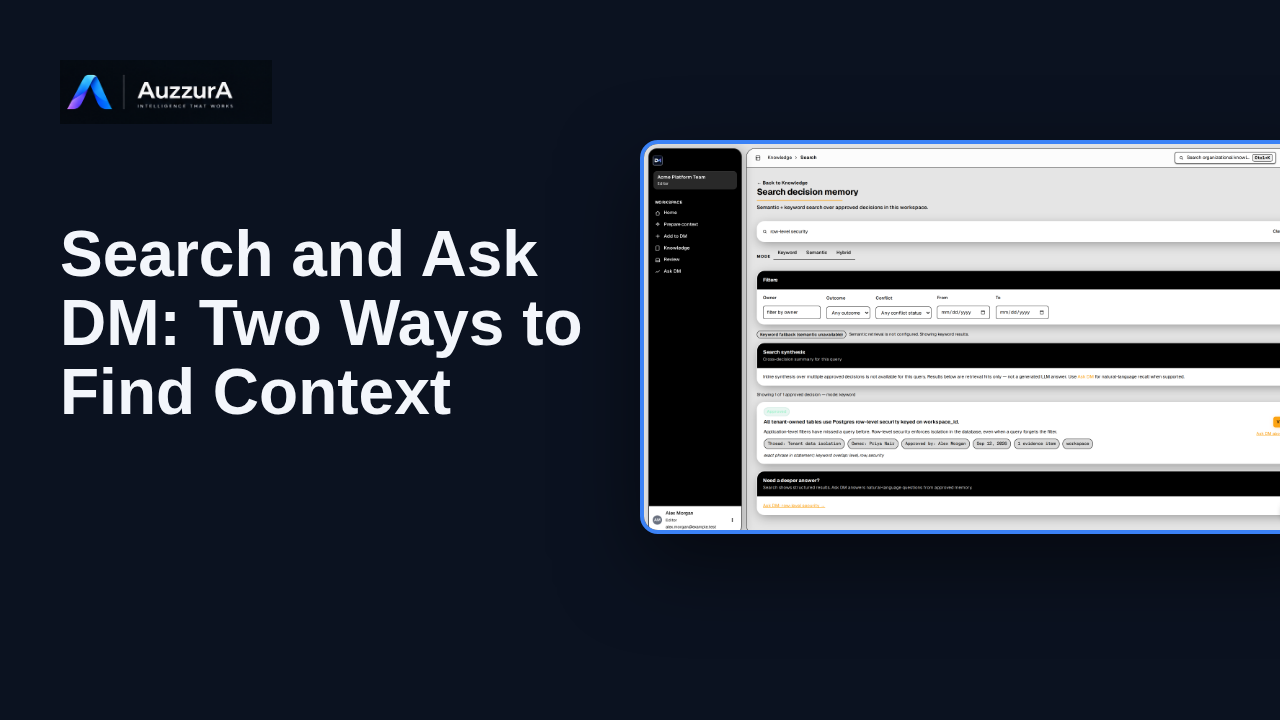
Orient users to search/navigation versus natural-language answer with citations. You do not need to remember a document title to find the decision behind it.
For: Any authorized workspace user
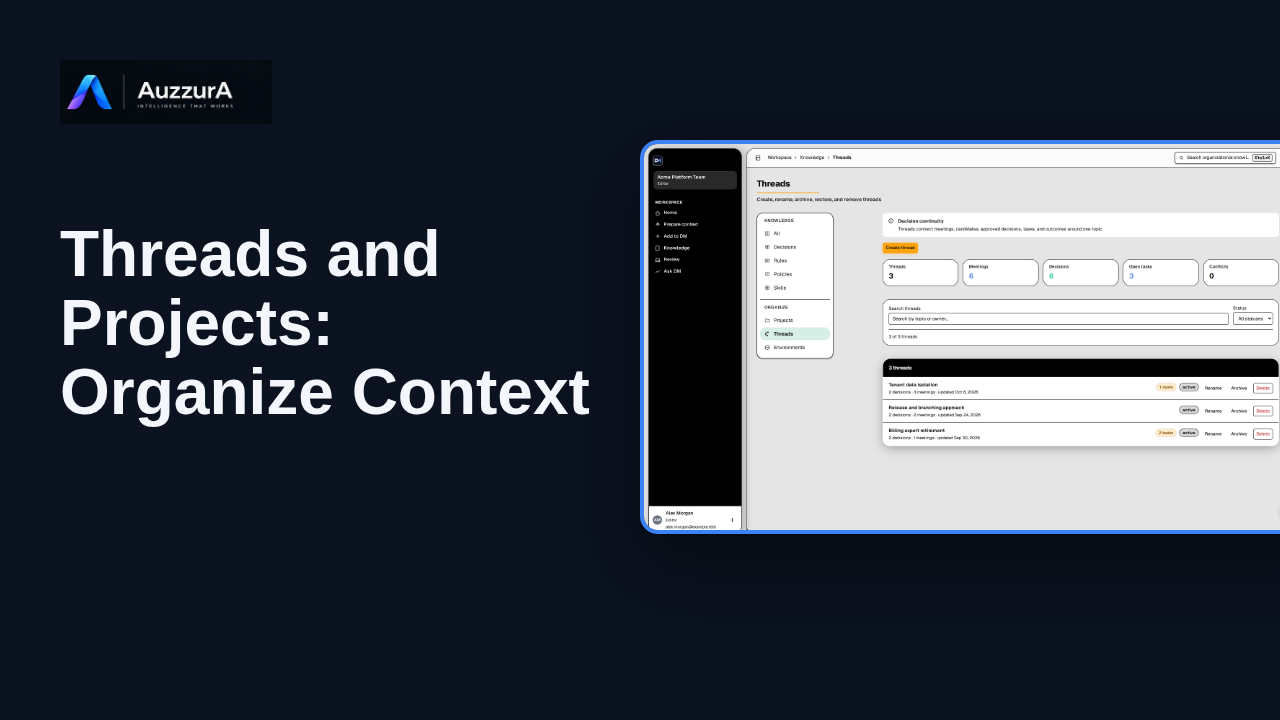
Explain how topic continuity and project organization work in the Knowledge section. Decisions change over time. Threads help keep their history connected.
For: Workspace member or project lead
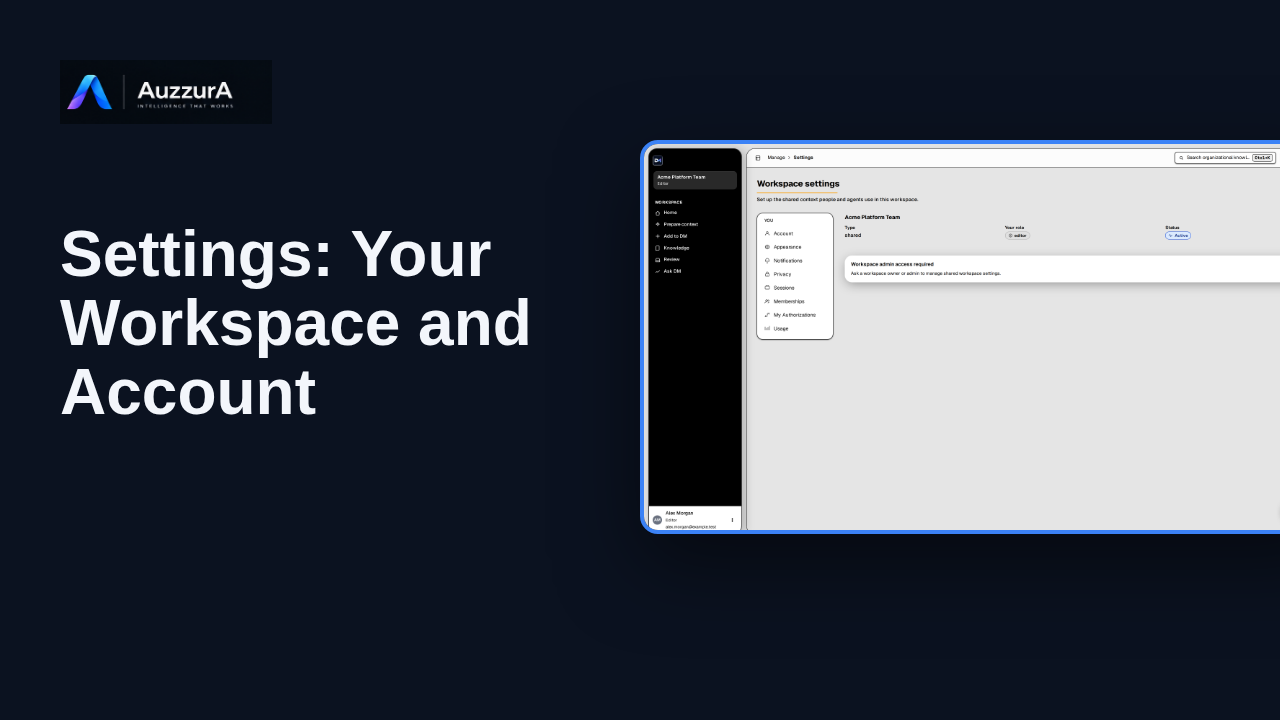
Explore workspace and account settings available to your role in DM.
For: Signed-in member