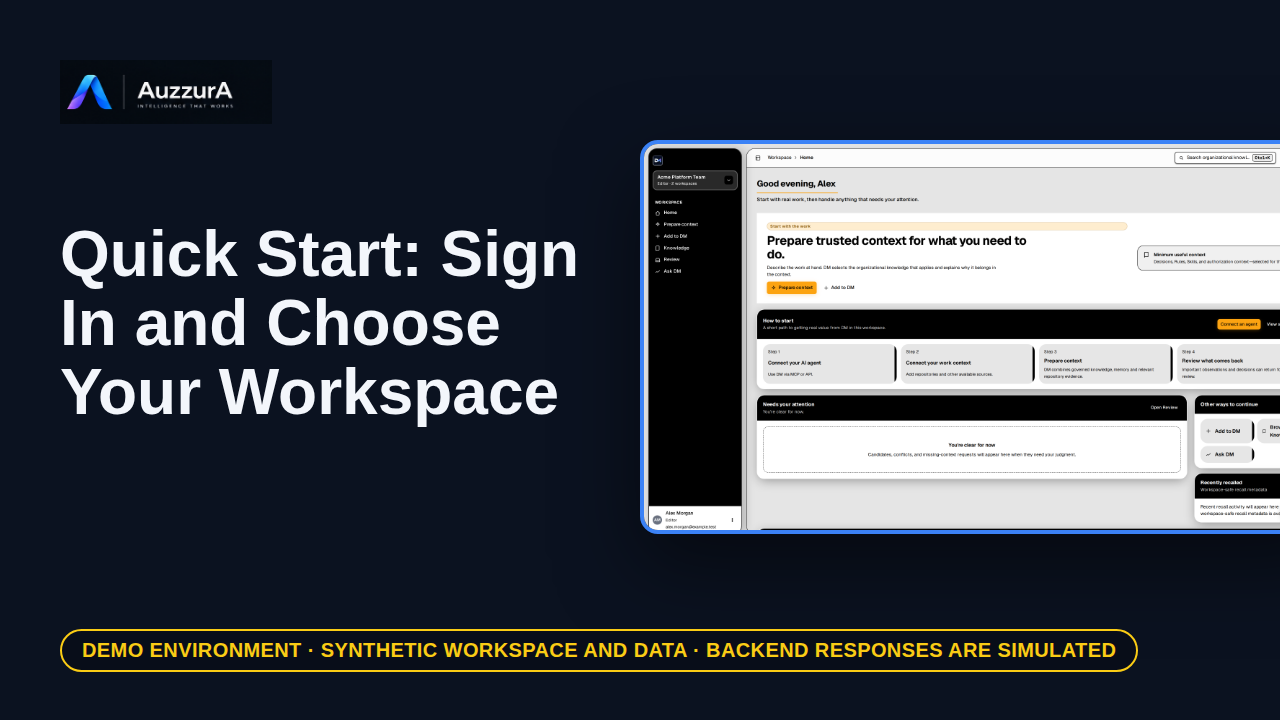
Sign in and choose your workspace
Reach the right workspace before doing anything else. Sign in once, then check which workspace is active.
For: New or invited pilot user
How-to
Know the three places you will use: the Home queue, Add to DM and Knowledge. Three places are enough to get started.
Read the steps OR watch the video. Both teach the same outcome, and neither is needed for the other.Jump to the video
Guided Quick Start
Follow the sequence or jump to any lesson. Every step also works on its own, with written instructions alongside the optional video.
Step 2 of 6
What it means: This is your DM Home. It shows what needs you, and where to work next.
What it means: To record a decision, use Add to DM.
What it means: Candidates wait in Review until a person approves them.
What it means: Approved decisions live in Knowledge, where you can find them again. Next, record your first decision.
Nothing is opened or clicked: this clip only points out where to work. Prepare context, Ask DM and Settings are covered elsewhere.
A real Home shows what your workspace and role allow; the empty queue here is a fixture.
Demo environment · synthetic workspace and data · backend responses are simulated. Quick Start 2 of 6
This guide shows the real DM Home and sidebar with SIMULATED backend responses and a synthetic workspace. What your Home and sidebar show depends on your role and workspace. Quick Start clips 1 to 6 follow one example workspace, Acme Platform Team.
A banner reading "Demo environment · synthetic workspace and data · backend responses are simulated" stays on screen for the whole video.
On screen: Start on DM Home (/). A highlight labelled "What needs you" marks "Needs your attention You're clear for now. Open Review You're clear f…".
Narrator: This is your DM Home. It shows what needs you, and where to work next.
On screen: A highlight labelled "Record a decision" marks "Add to DM".
Narrator: To record a decision, use Add to DM.
On screen: A highlight labelled "Approve candidates" marks "Review".
Narrator: Candidates wait in Review until a person approves them.
On screen: A highlight labelled "Approved decisions" marks "Knowledge".
Narrator: Approved decisions live in Knowledge, where you can find them again.
Narrator: Next, record your first decision.
Last verified against the product on .
Reach the right workspace before doing anything else. Sign in once, then check which workspace is active.
For: New or invited pilot user
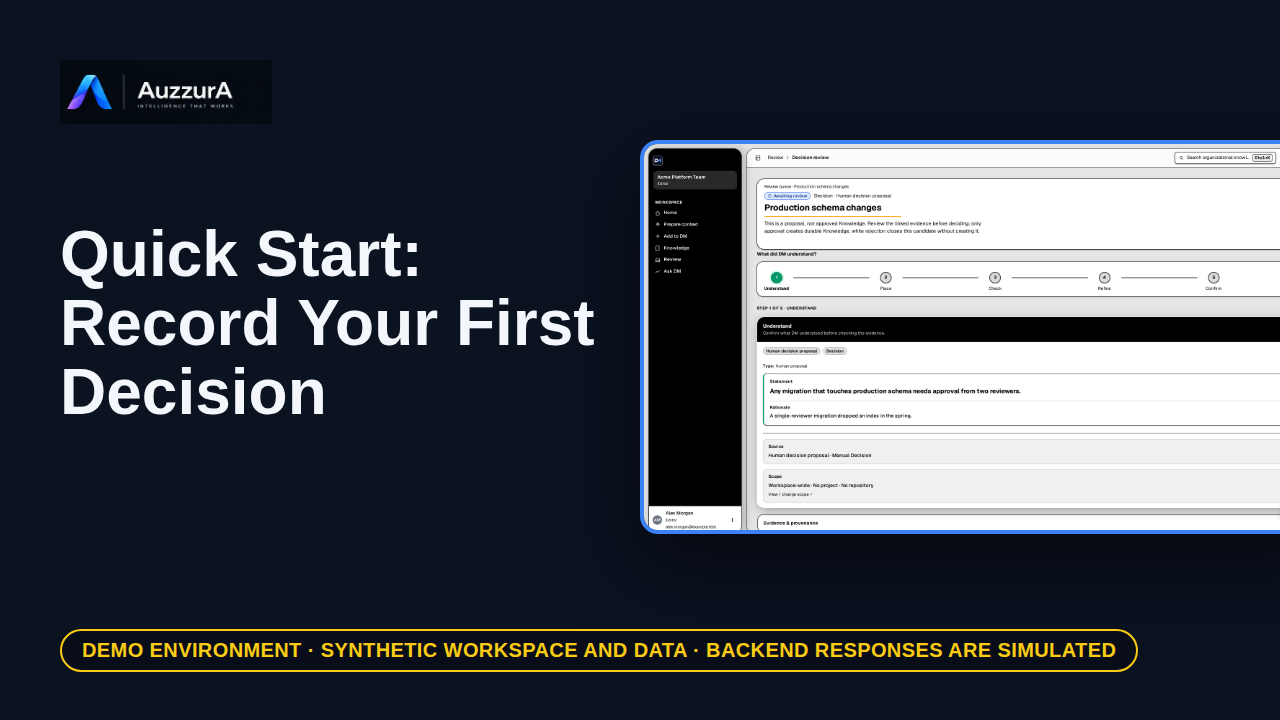
A decision candidate with its rationale is saved for review. Write the decision first. Add the reason while it is fresh.
For: Workspace member who can create decisions
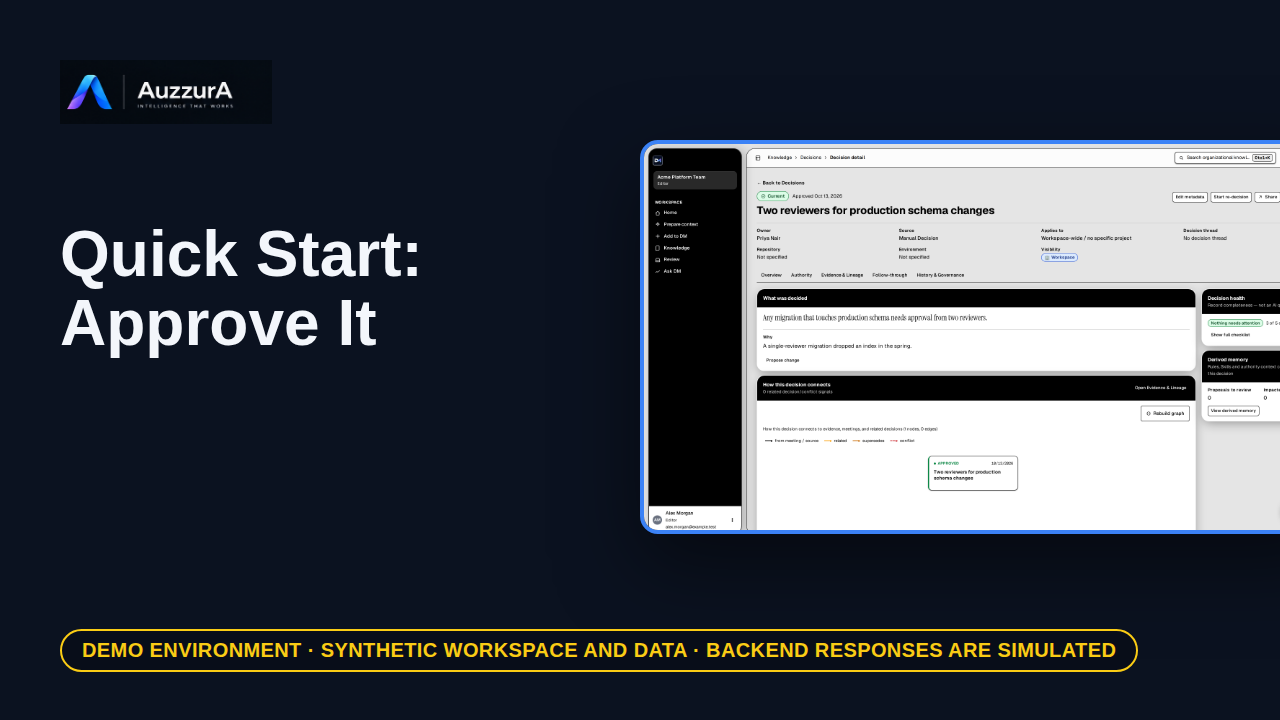
The candidate becomes approved team knowledge. Until a person approves it, it is only a proposal.
For: Reviewer or workspace decision owner
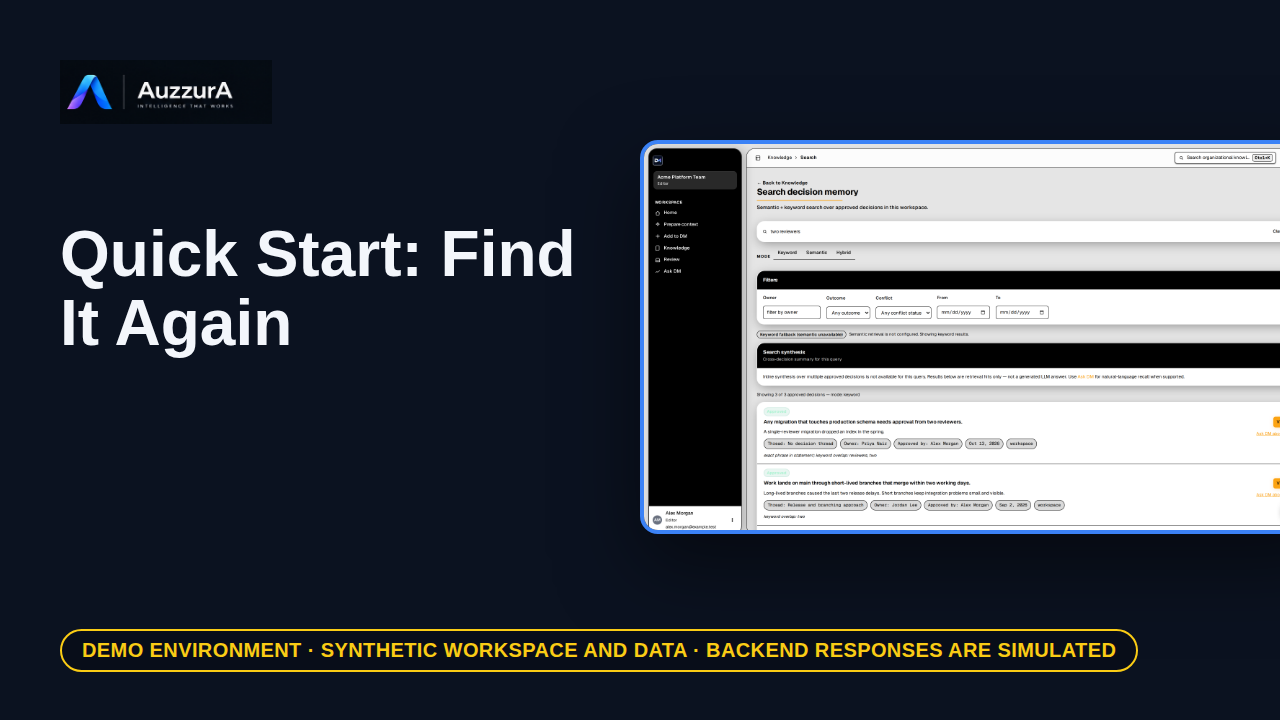
Find the decision, its reason and its evidence. Months later, search beats remembering.
For: Any authorized workspace user