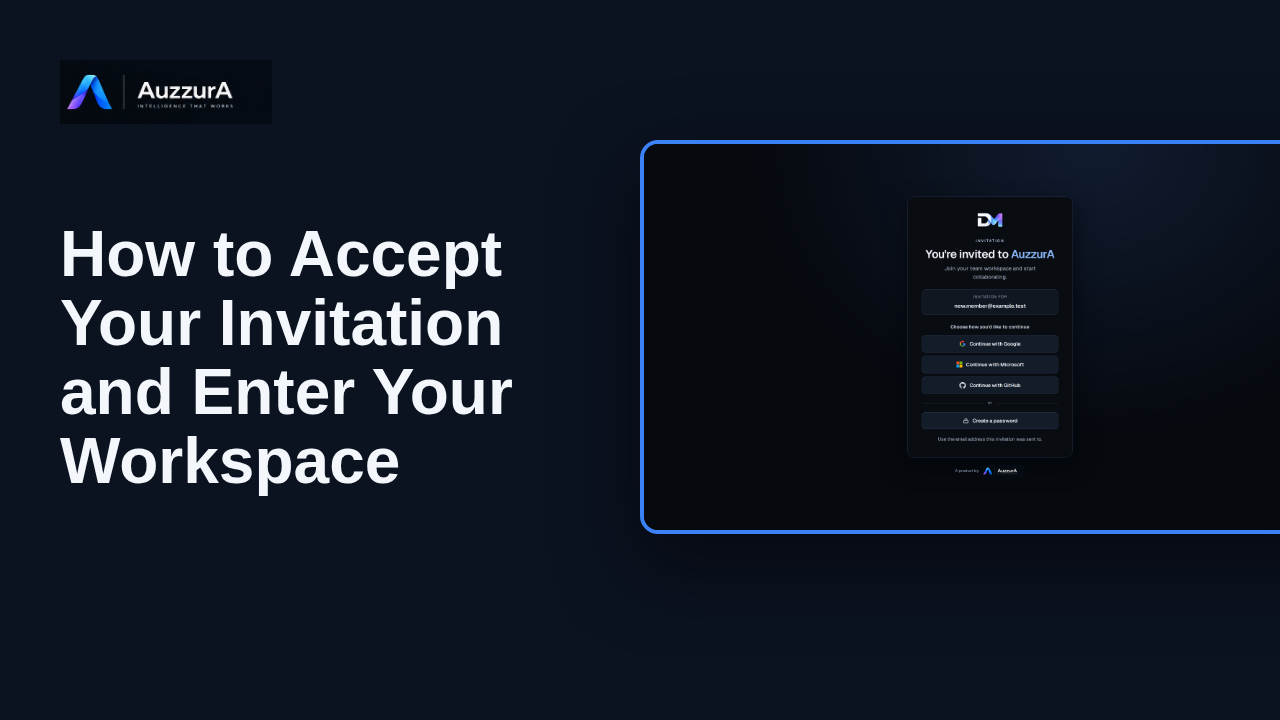
Accept an invitation and enter your workspace
Complete the invitation acceptance path and arrive in the invited workspace. Your invitation is the doorway to your team’s workspace in DM.
For: Invited user
How-to
Confirm correct workspace and permissions before working. Already signed in? Before working, check which team workspace is active.
Read the steps OR watch the video. Both teach the same outcome, and neither is needed for the other.Jump to the video
What it means: Welcome back to DM. This is the sign-in screen. Enter the email address and password for your existing account. Use the same email address your team invited.
What it means: Then select Sign in.
What it means: You're now on your DM Home. Before you add anything or connect an agent, check which workspace is active. The sidebar shows its name, your role in it, and how many workspaces you can reach.
What it means: Today's work is in Northwind Product Team. Open the Workspace Switcher.
What it means: The switcher lists every workspace you belong to, with your role in each. Select Northwind Product Team.
What it means: Your workspace has changed. Its name and your role in it now show in the sidebar. Your role decides what you can see and approve. It's worth a quick check before you start. You're now working in the right workspace. Next, let's explore your DM Home.
Sign-in against a deployed backend was not shown or verified. The session, the workspace list, your role and the workspace switch come from simulated responses.
Google, Microsoft and GitHub sign-in were not started and no external identity provider was contacted or verified. Only the email and password form was used. Invitation acceptance, self-service signup and email verification are covered by other episodes.
Demo environment · synthetic accounts and workspaces · backend responses are simulated. Check your workspace and role before you start
This guide follows the real DM sign-in screen, Home and Workspace Switcher with simulated backend responses and two synthetic workspaces. It does not prove sign-in or workspace switching works in staging or production.
Disclosure (kept in this transcript and the video description, not drawn on the frames): Demo environment · synthetic accounts and workspaces · backend responses are simulated.
On screen: Open the DM sign-in screen. Type "returning.member@example.test" into the "Email" field. Enter a password (at least 8 characters) in the "Password" field. The value is not shown or recorded. A highlight marks "Your email". A highlight marks "Your password".
Narrator: Welcome back to DM. This is the sign-in screen.
Narrator: Enter the email address and password for your existing account.
Narrator: Use the same email address your team invited.
On screen: Click "Sign in". The next view is "Good afternoon, Riley" (/). A highlight marks "Sign in".
Narrator: Then select Sign in.
On screen: A highlight labelled "Your active workspace" marks "Harbor Client Delivery Viewer · 2 workspaces".
Narrator: You're now on your DM Home.
Narrator: Before you add anything or connect an agent, check which workspace is active.
Narrator: The sidebar shows its name, your role in it, and how many workspaces you can reach.
On screen: Click "Workspace Switcher". The next view is "Good afternoon, Riley" (/). A highlight labelled "Workspace Switcher" marks "Harbor Client Delivery Viewer · 2 workspaces".
Narrator: Today's work is in Northwind Product Team.
Narrator: Open the Workspace Switcher.
On screen: Click "Northwind Product Team". The next view is "Good afternoon, Riley" (/). A highlight labelled "Choose a workspace" marks "Northwind Product Team".
Narrator: The switcher lists every workspace you belong to, with your role in each.
Narrator: Select Northwind Product Team.
On screen: A highlight labelled "Your workspace and role" marks "Northwind Product Team Editor · 2 workspaces".
Narrator: Your workspace has changed. Its name and your role in it now show in the sidebar.
Narrator: Your role decides what you can see and approve.
Narrator: It's worth a quick check before you start.
Narrator: You're now working in the right workspace. Next, let's explore your DM Home.
Last verified against the product on .
Complete the invitation acceptance path and arrive in the invited workspace. Your invitation is the doorway to your team’s workspace in DM.
For: Invited user
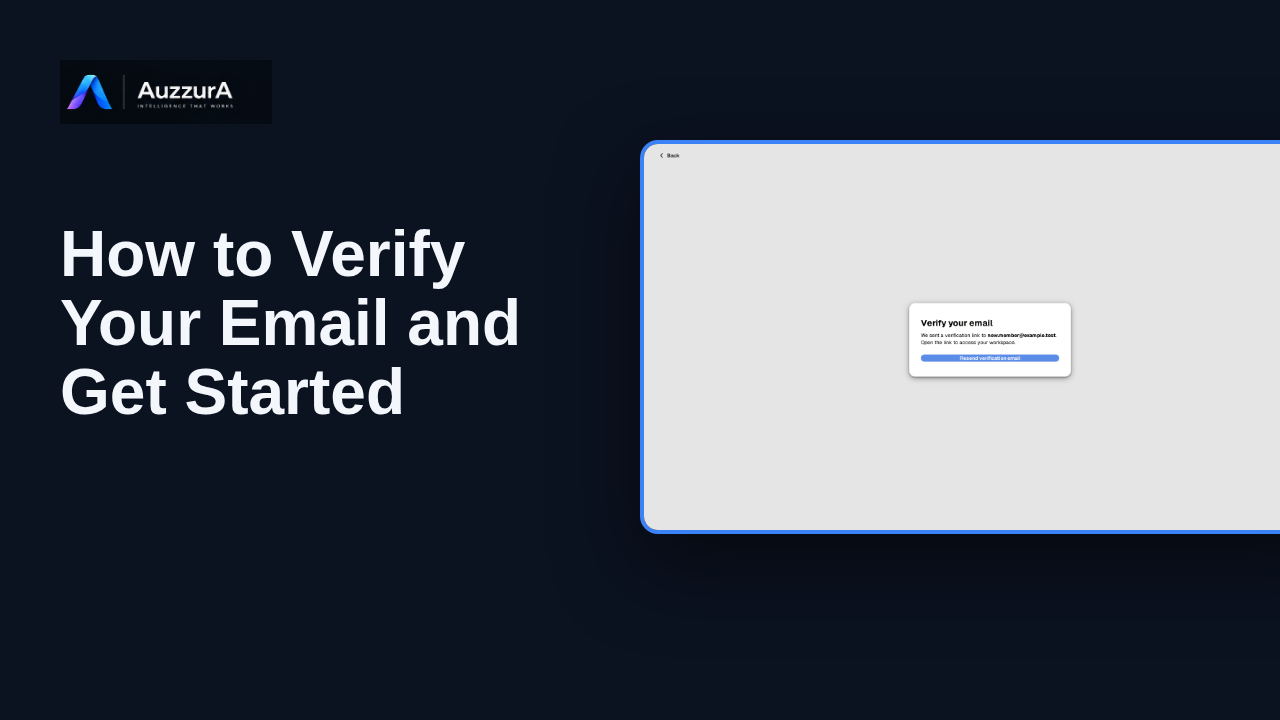
Confirm email verification before working and show the correct sign-in redirect. Before your first session, confirm that the email address belongs to you.
For: Newly registered user
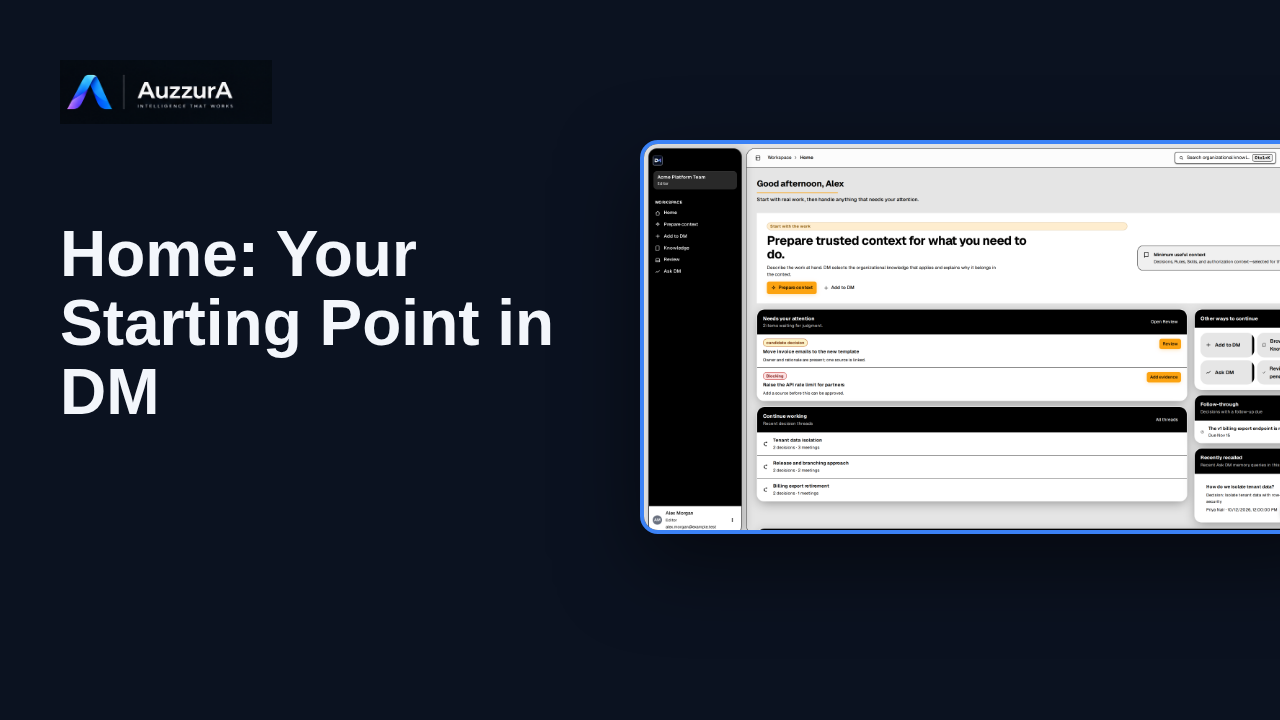
Orient new users to DM Home and the main areas that need attention.
For: Any signed-in workspace member
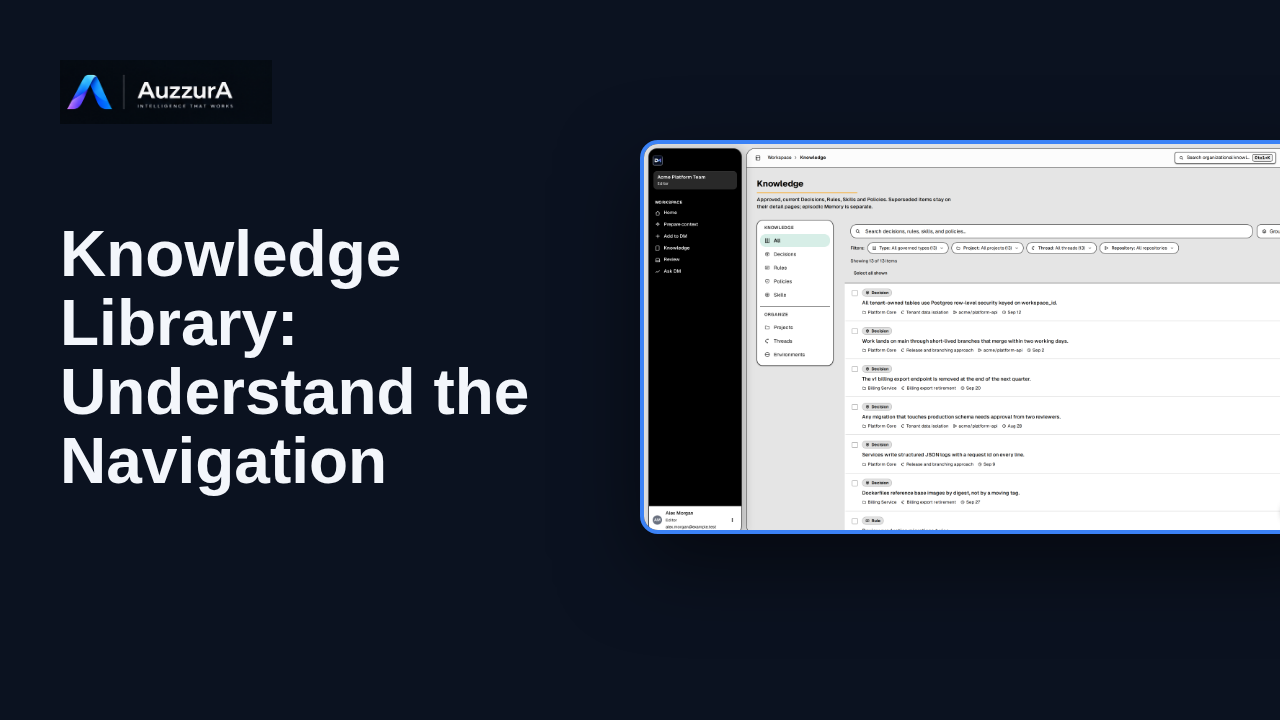
Find approved decisions, rules, skills and related team context in DM’s Knowledge library.
For: New workspace member